Here are the simple instructions to use Cart Conversion Boost Pro to get more sales.
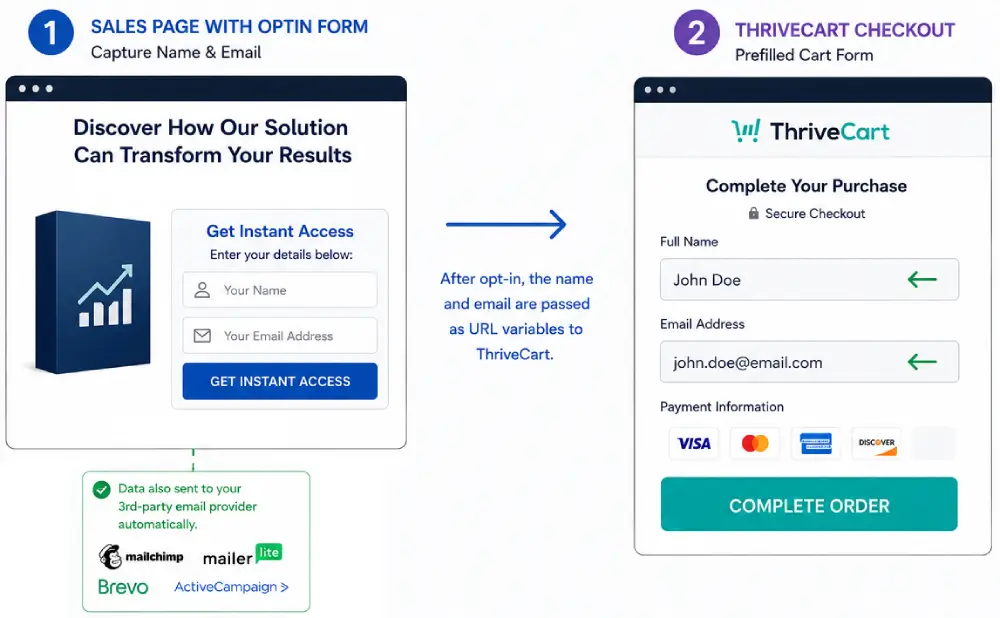
Your opt-in form takes the customer's name and email before they get to your ThriveCart checkout, so you can follow up with them in case they don't complete their purchase.
AND Cart Conversion Boost carries those details into your ThriveCart checkout form, so it arrives pre-filled and your customer doesn't have to type them again. So buying is easier.
With the Pro plugin, you have unlimited products, so you can grow and scale your success.
There are 2 versions of Cart Conversion Boost:Free and Pro (you're on the Pro instructions).
Free and Pro have exactly the same features. The only difference is the number of products: Free works with one product, Pro is unlimited.
On this page you'll find text and screenshot explanations, with a walk-through video for each part. Follow whichever you prefer.
In WP Admin, go to Plugins > Add New > Upload Plugin. Choose the Pro zip file you downloaded, click Install Now, then Activate.
Upgrading from Free?
Go to Plugins and deactivate Cart Conversion Boost (the free version).
Upload and activate Cart Conversion Boost Pro, as above.
Add your licence key (below).
The product you set up in Free is already there in Pro, and your CCB URL keeps working, so there's nothing to redo.
Add your licence key
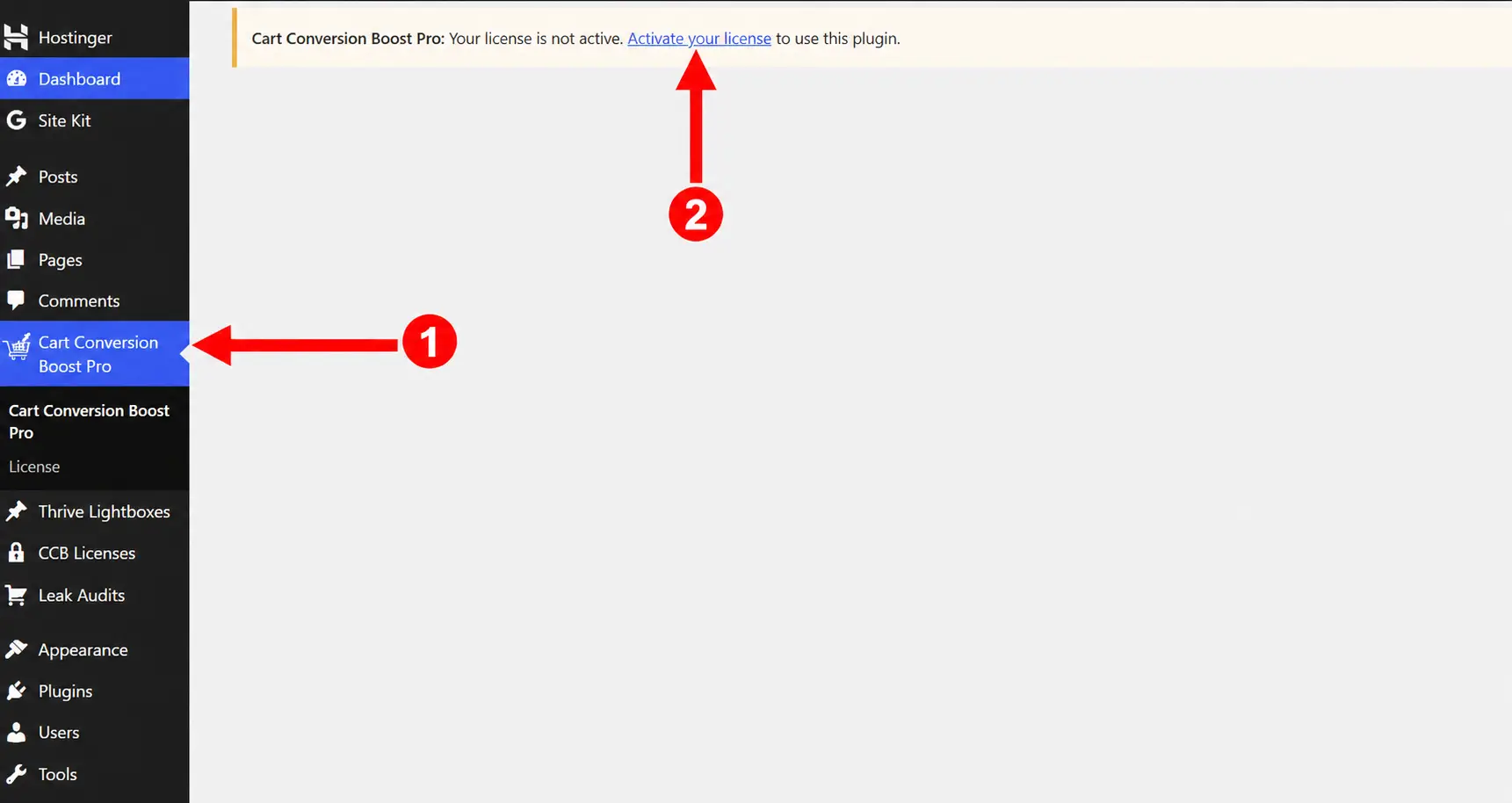
As soon as you activate Pro, you'll see a notice at the top of your WP Admin: "Your license is not active. Activate your license to use this plugin."
To add your licence, either:
Click Cart Conversion Boost Pro in your left-hand menu, then License, or
Click the Activate your license link in that notice.
1. Cart Conversion Boost Pro > License in your left-hand menu, or 2. the "Activate your license" link in the notice
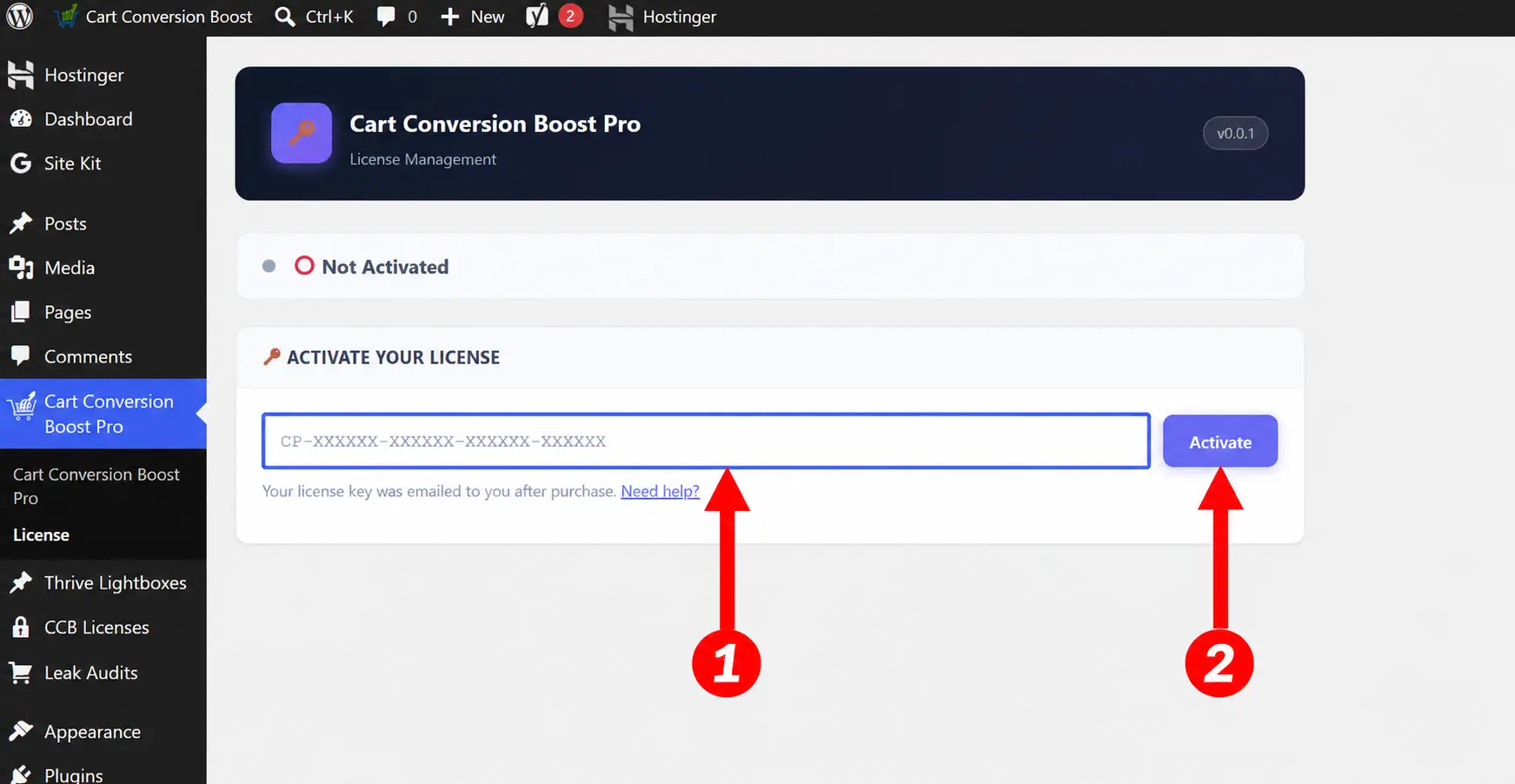
On the License page, under Activate Your License:
Paste the licence key that was emailed to you after purchase.
Click Activate.
1. Paste your licence key, 2. click Activate
The status at the top changes from "Not Activated" to "License Active", and Pro is ready to use.
Pro needs an active licence to work.
Step 2Save Your Product and Get Your CCB URL
Next, add your product's ThriveCart product URL to Cart Conversion Boost Pro. This saves the product in the plugin and creates its Cart Conversion Boost URL (CCB URL).
To get your ThriveCart product URL, log in to your ThriveCart account...
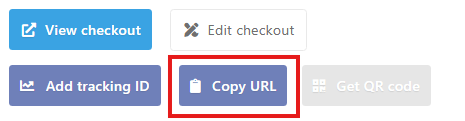
Click the "Products" top menu barsSelect "Get URL" for the chosen productClick "Copy URL"
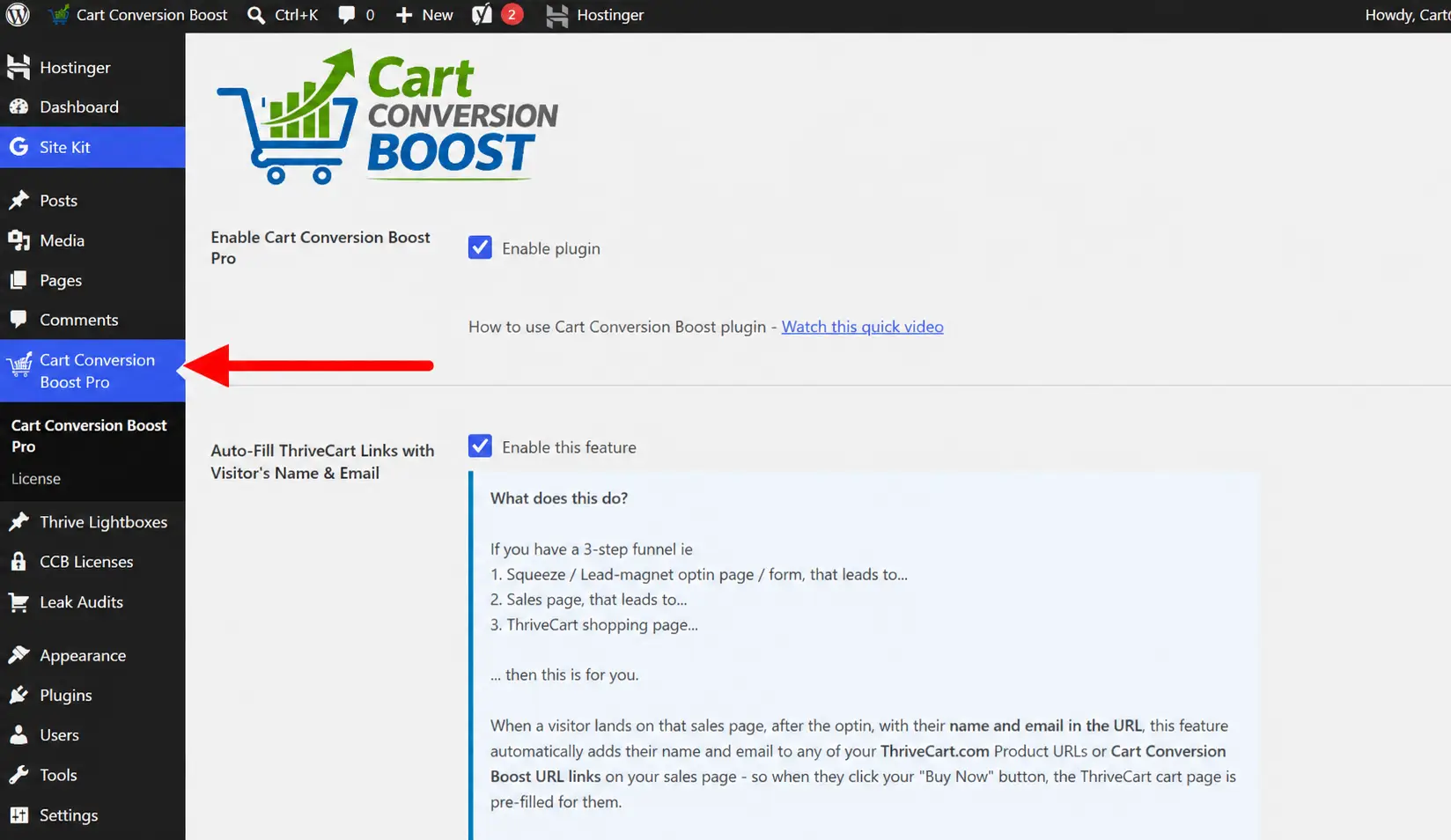
Then in WP Admin, click Cart Conversion Boost Pro in your left-hand menu.
Click Cart Conversion Boost Pro in your left-hand menu
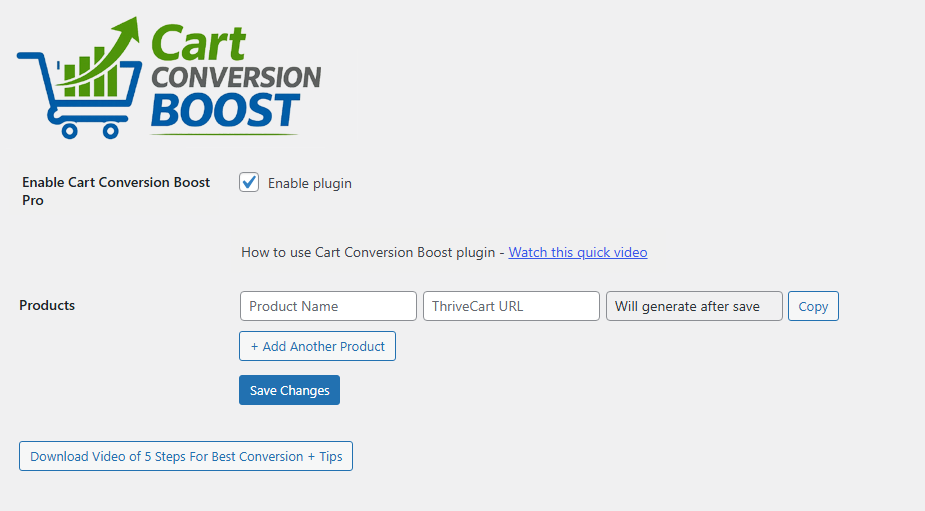
At the top of the settings page, make sure "Enable plugin" is ticked.
Then scroll down and paste your ThriveCart product URL into the "ThriveCart URL" box.
Paste that product URL into the "ThriveCart URL" box
Give it a name (only for your own reference).
Hit "Save Changes".
Click the "Copy" button on the right.
That's your Cart Conversion Boost URL (CCB URL).
Adding more products
Repeat this for each of your products. Each product gets its own CCB URL.
Removing a product never changes another product's CCB URL, so your existing links keep working.
Whichever funnel you use, your product must be saved here. Cart Conversion Boost only pre-fills the checkout for products saved in the plugin.
This video shows you all the steps up to this point...
Step 3Do You Have a 2-Step or 3-Step Funnel?
How you finish your setup depends on your funnel.
2-Step Funnel: Sales page > Cart
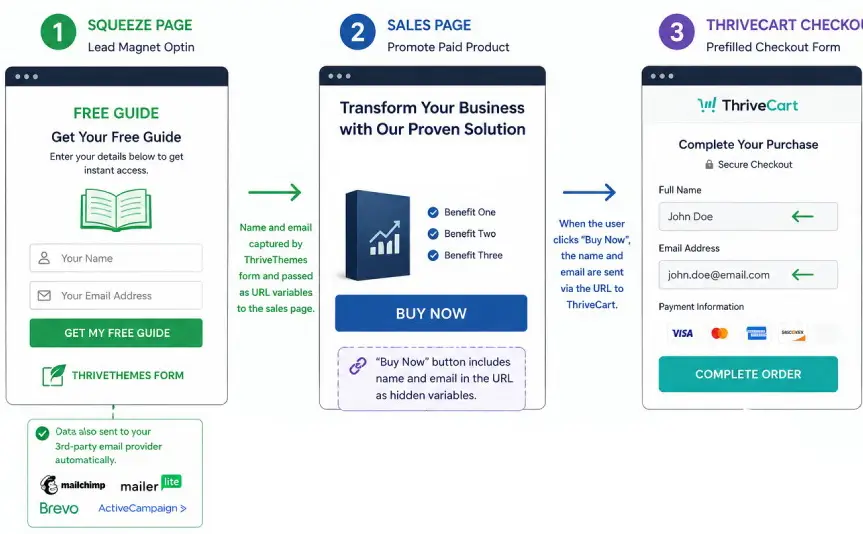
3-Step Funnel: Squeeze opt-in > Sales page > Cart
Setting Up a 2-Step Funnel
In a 2-step funnel, your sales page Buy button opens an opt-in pop-up. The customer pops in their name and email, and the opt-in sends them on to your checkout, pre-filled.
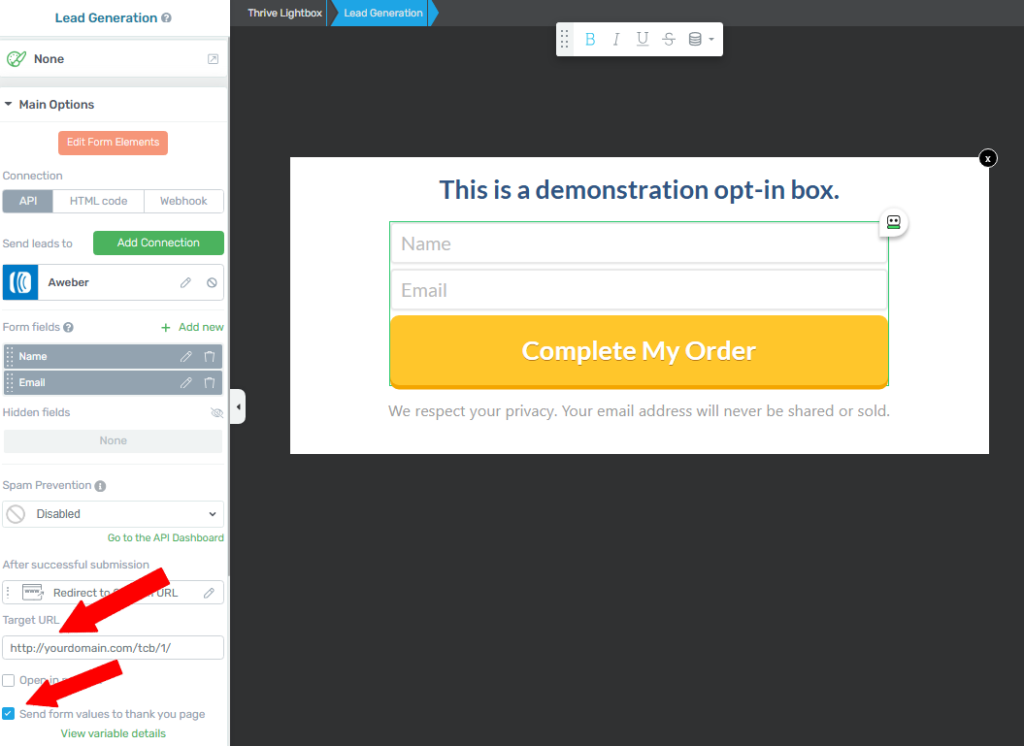
Paste your CCB URL into your Thrive Themes opt-in form, as the Target URL for "After successful submission", Redirect to Custom URL.
This is a Thrive Themes Lightbox opt-in, to give a 2-step on-click opt-in pop-up
In your Thrive Themes opt-in, click on your form.
On the left, under "After successful submission", change it to "Redirect to Custom URL".
Paste your CCB URL as the "Target URL".
Make sure you tick / check "Send form values to thankyou page".
Save.
That is it, for a 2-step funnel.
Important: the Target URL must be your CCB URL, not your ThriveCart product URL. If it goes straight to ThriveCart, the checkout will not be pre-filled.
Heads up: after your customer submits the form, the checkout can take 6-7 seconds to load while Cart Conversion Boost passes their details across. That's normal.
This next video shows you how to add your CCB URL into your opt-in form...
And this one shows you how to set up a 2-step opt-in (on-click pop-up) in Thrive Themes...
Setting Up a 3-Step Funnel
In a 3-step funnel, your opt-in form is on your squeeze page, so it doesn't send people straight to the checkout. It sends them to your sales page, and your sales page "Buy Now" button sends them to ThriveCart.
On your squeeze page
Set up your Thrive Themes opt-in form exactly as a normal Thrive Themes opt-in form. Ideally as a 2-step on-click pop-up opt-in form.
Under "After successful submission", choose "Redirect to Custom URL".
This time, paste the URL of your sales page as the Target URL.
Remember to tick / check "Send form values to thankyou page".
Save.
In the Cart Conversion Boost settings
Make sure "Auto-Fill ThriveCart Links with Visitor's Name & Email" is ticked. This is what adds the name and email to the Buy links on your sales page.
On your sales page
In Pro, you don't need to use your CCB URL here. (You can, but you don't have to.)
Simply use your ThriveCart product URL on your "Buy Now" buttons and links, as if you never had Cart Conversion Boost! It adds the name and email behind the scenes to any link to a ThriveCart product you've saved in the plugin.
(If you've upgraded from Free and already have your CCB URL on your Buy buttons, that still works too.)
If a product isn't saved in the plugin, its checkout won't be pre-filled.
If your Buy button opens a pop-up opt-in instead of linking straight to the checkout, that pop-up's Target URL must be your CCB URL. See Silent Opt-in below.
That will then carry the name and email address into your ThriveCart page and pre-fill the form.
This next video shows you how to set up a 3-step funnel...
Silent Opt-in
If you're using a 3-step funnel (squeeze page opt-in > sales page > ThriveCart payment page), you're probably thinking it would still be a good idea to have a cart-abandonment email follow-up sequence for the people who click through from the sales page to the payment page. On average, about 70.2% of people who reach a cart leave without buying.
But rather than email your whole squeeze page list as if they were cart abandons, you only want to follow up that way with the people who genuinely clicked through to the cart.
That's what Silent Opt-in is for.
You put an opt-in pop-up on your sales page Buy button. If the browser already knows the visitor's name and email (from your squeeze page opt-in, or from a link in one of your emails), the pop-up stays invisible. They click Buy, and the next thing they see is their pre-filled checkout. Fewer decisions, less friction. Behind the scenes, the opt-in still goes through, so they land in your cart-abandonment sequence.
If someone arrives at that sales page without the squeeze page before it, and the browser doesn't know their name and email, the Buy button pop-up shows as normal. They fill it in, and go through to the checkout pre-filled.
So everyone in your cart-abandonment sequence genuinely clicked through to the cart.
How to set up Silent Opt-in
Make your sales page "Buy Now" button open a pop-up opt-in: a Thrive Architect lightbox, a Thrive Leads 2-step lightbox (ThriveBox), or a Kit (ConvertKit) modal form.
In that pop-up's opt-in form, under "After successful submission", choose "Redirect to Custom URL" and paste your CCB URL as the "Target URL". (For a Kit form, set it to redirect to your CCB URL.)
For Thrive forms, tick / check "Send form values to thankyou page".
In the Cart Conversion Boost settings, make sure "Silent opt-in" is ticked. You can also change the message shown on the Buy button while the checkout loads.
Important: the pop-up's Target URL must be your CCB URL. If it goes straight to your ThriveCart product URL instead, the cart will not be pre-filled.
If the pop-up's form has a tick box, a captcha or a required field the plugin can't fill in, the pop-up is shown as normal (pre-filled where possible), so nobody gets stuck.
Where Your Checkout Lives
Cart Conversion Boost pre-fills your checkout wherever it runs:
On thrivecart.com: works straight away.
Embedded on one of your own pages: pre-filled automatically.
On your own domain (a ThriveCart custom domain, such as pay.yoursite.com): add that domain in the plugin's "Custom checkout domains" setting, and links to your saved products on that domain are pre-filled too.
Sitewide Identity Persistence
Once a visitor's name and email are known, Cart Conversion Boost remembers them as they click from page to page to page on your site, for the rest of their visit. So any Buy link, checkout or opt-in they reach later is pre-filled.
It works from your emails too. Add the subscriber's name and email to the link back to your site (see Pre-fill Opt-in below), and they're recognised the moment they arrive.
It's explained and shown in this video...
Pre-fill Opt-in
When a visitor arrives and their name and email are already known (for example from a link in your emails, or from an earlier opt-in during the same visit), Cart Conversion Boost fills their details into your Thrive Themes and Kit opt-in forms, including 2-step lightbox pop-ups. They just click the button to carry on.
First-name boxes get the first name, last-name boxes the last name, and full-name boxes the full name. Anything the visitor has already typed is never overwritten.
You can turn this on or off with the "Pre-fill Thrive and Kit opt-in forms" setting.
To use it from your emails, add the subscriber's name and email to the link back to your site, using tve_name and email with your email provider's merge tags. For example:
Cart Conversion Boost also works with Kit forms on your own WordPress site: forms embedded from Kit, and the Kit plugin's Form block and Form Builder block.
2-step funnel: in Kit, open your form, go to Settings, then "After subscribing", choose "Redirect to an external page" and paste your CCB URL.
Kit plugin Form Builder block: set the block's "Redirect" setting to your CCB URL (to go straight to the checkout), or to your sales page.
3-step funnel: set Kit to redirect to your sales page, or to show its success message on the same page. With Sitewide Identity Persistence on (and "Auto-Fill ThriveCart Links" ticked), your Buy links and checkout are pre-filled for the rest of the visit.
Kit forms usually ask for a first name only. That's fine: the first name is pre-filled, and if your checkout asks for a last name, the buyer types it. If you add a Kit custom field for the last name (key last_name), that is passed through too.
Kit-hosted landing pages (on Kit's own domain) aren't supported, because the plugin can only run on your own WordPress site. Put the Kit form on a page on your site instead.
Other Form Tools
Cart Conversion Boost also works with forms built with Elementor, Thrive Leads, Contact Form 7 and ConvertBox, and with Mailchimp and MailerLite forms on your own WordPress site. You'll find the full, up-to-date list on the Now Works With page.
The same rule applies whichever tool you use:
2-step funnel: after a successful submission, the form sends the customer to your CCB URL.
3-step funnel: after a successful submission, the form sends the customer to your sales page.
Test Your Setup
Once it's all set up, the best test is to go through your funnel as a customer, through the opt-in and on to the checkout.
Or to see just your CCB URL working, add the following to the end of your CCB URL, then visit it in a browser:
?tve_name=Duncan%20Test&email=test@example.com
You should see your ThriveCart product page, with the name and email boxes pre-filled with "Duncan Test" and "test@example.com".
Summary - Pro Plugin
Install Pro and activate your licence (upgrading from Free? Deactivate Free first. Your product carries over).
Save every product's ThriveCart URL in the plugin. Only saved products are pre-filled.
In your 2-step funnels, use the CCB URL as the Target URL in your opt-in form.
In your 3-step funnels, use your ThriveCart product URL (or your CCB URL) on your "Buy Now" buttons.
For 3-step funnels, keep "Auto-Fill ThriveCart Links with Visitor's Name & Email" ticked in the settings.
Whenever an opt-in form sends the customer on to your ThriveCart page (including a pop-up opt-in on your Buy button), its Target URL must be your CCB URL.
I hope that helps. If in doubt, rewatch the videos.
Wishing you a healthy boost in your sales conversion.